Originally Posted by
toogie
Well, this wasn't fun platyhiker
I wish I could white out like you, because pictures are taken at angles, that I can't match up. I wanted to see how multi blocks would join up.
I use Microsoft Paint for playing around with pictures. One of the tricks to whiting out is using the Color Picker tool (it looks like an eye dropper and is to the right of the Eraser) to sample a back ground color, and then click Edit colors button (to the right of the colors) and then click Add to Custom colors; now you can use the new color for both box outlines and fills.
I played around and figured out how to square up an image. Your image needed to be rotated a bit counter clockwise.
1) Copy the image into a fresh file
2) Flip the vertical on the image (an option under Rotate)
3) Click on Resize and then set a vertical skew (I had to try a few times - I think I ended up with a 2 degree skew looking good.)
(Optional: You can now flip the vertical again to get things back with same top-bottom orientation as the original; I didn't bother with this image)
4) Copy a rectangular sample and start playing with it
Here's what I ended up with:
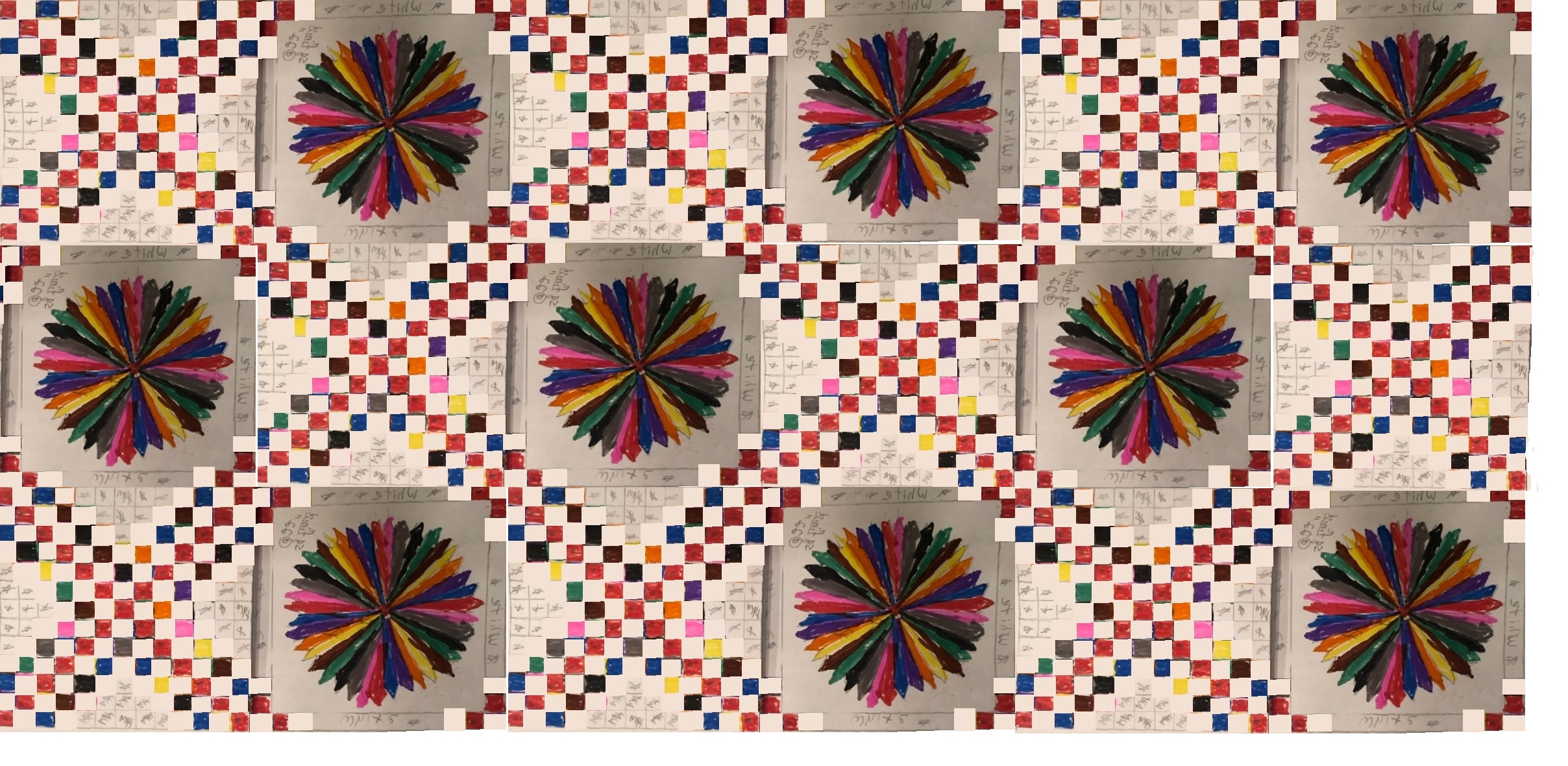
P.S. If you have an image that needs clockwise rotation, just skip step 2.